
Data recovery software is designed to find files that the operating system can no longer see normally. It can be useful when the storage device is healthy and the problem is truly logical. It cannot repair physical, electrical, firmware, controller, or mechanical failure.
Last updated September 6, 2026. Reviewed by Michael Avraham, Lead Data Recovery Specialist at OmniDataPlus.
Quick answer
Data recovery software can help only when the storage device is healthy and the problem is logical, such as accidental deletion or a lost partition. If the device clicks, disconnects, freezes, reports the wrong capacity, was dropped, suffered liquid damage, or contains irreplaceable files, software can turn a recoverable case into a harder lab case.
- Use software only on a stable source device and save recovered files to a different drive.
- Stop immediately if the device behaves physically unstable or unusually slow.
- Bring the device in for free diagnostics when the data matters more than the cost of guessing.
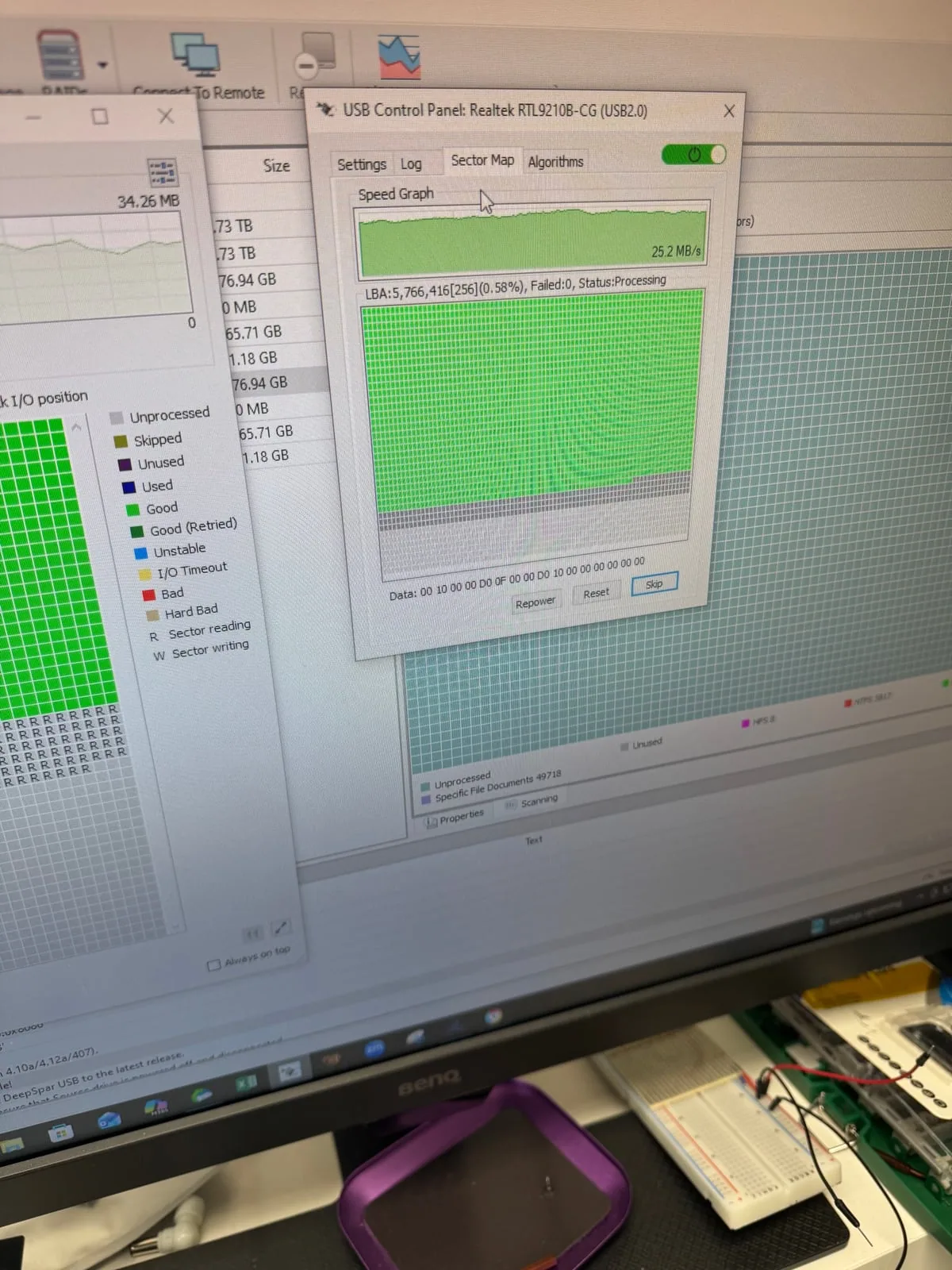
When DIY recovery software may be reasonable
Software may help in a straightforward Tier 1 logical recovery case when the device is physically healthy, identifies consistently, operates at normal speed, and has no unusual symptoms.
- Files were accidentally deleted from a healthy hard drive or memory card
- A healthy drive was formatted and has not been used afterward
- A partition or file system is damaged, but the device reads normally
- The storage device does not click, freeze, disconnect, or become unusually slow
Never save recovered files back onto the source device.
Even in a logical recovery case, writing new data to the source device can overwrite the files you are trying to recover. Recovered files must always be saved to separate storage media.
When software recovery is the wrong first step
If the device is unstable or physically compromised, software cannot repair the cause. A scan repeatedly asks the device to read large areas, which can stress a failing drive or consume the limited access window of an unstable SSD.
Possible logical problem
The device reads normally, stays connected, makes no unusual sounds, and the issue began after deletion, formatting, or filesystem corruption.
Possible hardware-level problem
The device clicks, freezes, disappears, disconnects, reports the wrong size, becomes read-only, was dropped, or suffered liquid or electrical damage.
Hard drives: clicking and slow drives are not DIY cases
A clicking, grinding, beeping, dropped, or extremely slow hard drive may have mechanical or media damage. Software cannot repair damaged heads, platter surfaces, motors, or internal contamination. Long scans can make the drive work harder and worsen the damage.
Do not open a hard drive because a YouTube video makes it look easy.
Videos showing hard drives opened on ordinary desks, without a suitable clean environment, specialized tools, or professional training are often designed to attract clicks rather than protect your data. Opening a drive can introduce contamination, damage delicate heads and platters, and turn a recoverable failure into permanent data loss. There is no safe DIY procedure for opening a mechanically failed hard drive.
SSDs: software cannot solve firmware, controller, or NAND failure
An SSD may disappear, freeze a computer, report the wrong capacity, become read-only, or stop responding because of firmware, controller, electrical, or NAND problems. Recovery software assumes the SSD can still provide stable reads. It cannot repair the failed access path.
Deleted-file recovery from SSDs also has a major limitation: TRIM may clear deleted blocks before recovery software can find them.
RAID and NAS: avoid recovery software before preserving the drives
A RAID or NAS failure can involve disk order, parity, metadata, multiple weak drives, failed rebuilds, and filesystem damage. Scanning individual members or forcing another rebuild can overwrite useful information. Preserve the full set and the failure history first.
Phones: encryption changes the recovery problem
Modern iPhones and Android phones usually encrypt their data. If the phone is dead or will not boot, desktop recovery software generally cannot simply read the memory and recover the files. The original device may need board-level work to restore enough function to unlock and extract the data.
Questions to ask before trying DIY software
- Is the device operating normally and consistently?
- Is the problem clearly deletion, formatting, or logical corruption?
- Can I make a complete image before scanning?
- Do I have another drive ready for recovered files?
- Can I accept the risk if the attempt makes professional recovery harder?
Stop immediately if the device clicks, freezes, disconnects, disappears, reports the wrong capacity, becomes unusually slow, was dropped, suffered liquid damage, or contains irreplaceable data with no backup.
When DIY becomes the wrong path
DIY recovery is a decision about risk, not just convenience. A healthy device with deleted files is very different from a drive with mechanical damage, firmware trouble, bad sectors, liquid exposure, or intermittent connection. Once the symptoms suggest instability, a lab-first diagnosis protects the remaining recovery window.
Best first action
If the data is replaceable and the device is clearly healthy, careful software recovery may be reasonable. If the device is unstable, physically damaged, encrypted, part of a RAID, or contains irreplaceable files, stop and have it diagnosed before attempting recovery.
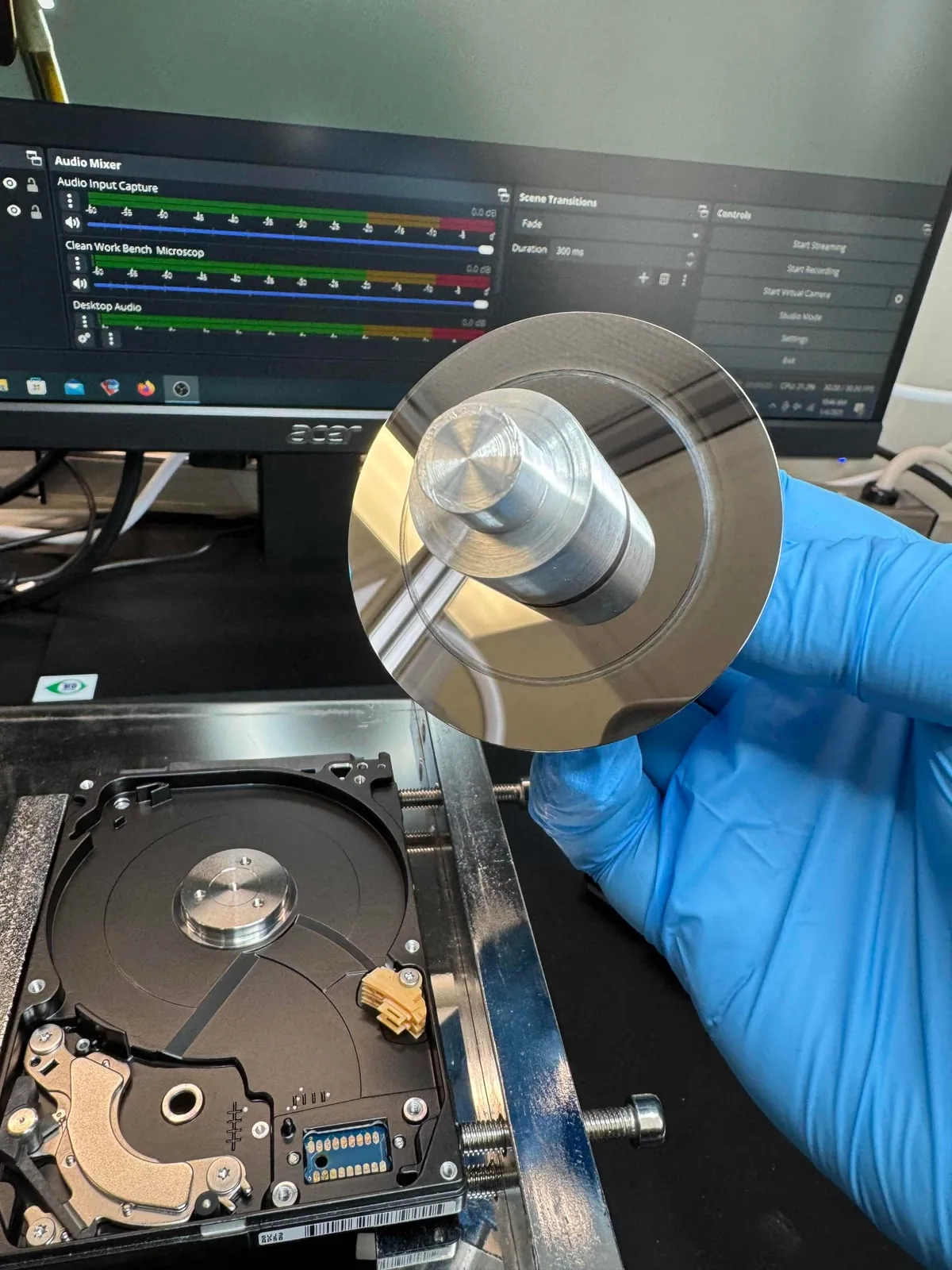
North York data recovery lab
Not sure if software is safe to try?
Free diagnostics are available at OmniDataPlus. Bring the device in as-is, or contact the lab before attempting another power-on, scan, rebuild, or repair.